Miscellaneous customers that seldom place orders may register their orders as sundry users instead of having to sign on with a user account. All users who choose not to sign on during the order placement will be registered as sundry users for the defined sundry customer number.
This process contains the following steps which are described here:
- Adding a sundry customer in the Enterprise/DC1 Business partner file
- Edit the user information
- Edit the application settings
Adding a sundry customer in the Enterprise/DC1 Business partner file
Since many miscellaneous customers use the sundry customer number, no name and address information is defined. Instead, each sundry user will have to enter this information before closing the purchase order.
The following fields are important when you define a sundry user:
- Sundry number
- Set to YES indicating that the customer number will be used as a common number for sundry customers.
- Sourcing policy
- The policy that is selected will be used for all sundry customers.
- Credit card file
- No credit card numbers should be connected to the sundry user.
For detailed information about how to set up a new customer, see Add a new customer.
Edit the user information
- Click User.
- You access the User page. Click the
 icon next to the NETSTORE_DEFAULT user to edit the user.
 - Customer
- Select the sundry customer that you have set up in the Business partner file.
- Note: Field Several customers allowed may not be marked.
Panel image
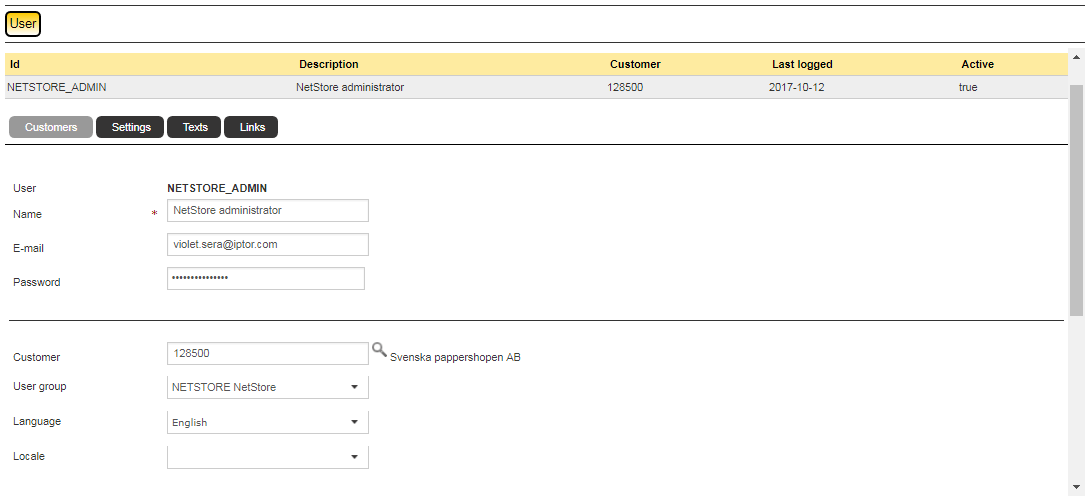
Complete the following field:
Click OK.
Edit the application settings
- Click Application.
- On the Applications page, click the Settings button.
- You access the Settings window. Under Actions, click the
 icon icon next to the SignonPolicy setting to edit it.
 - Value
- Select the sign-on policy value to be used. Valid values are:
Panel image
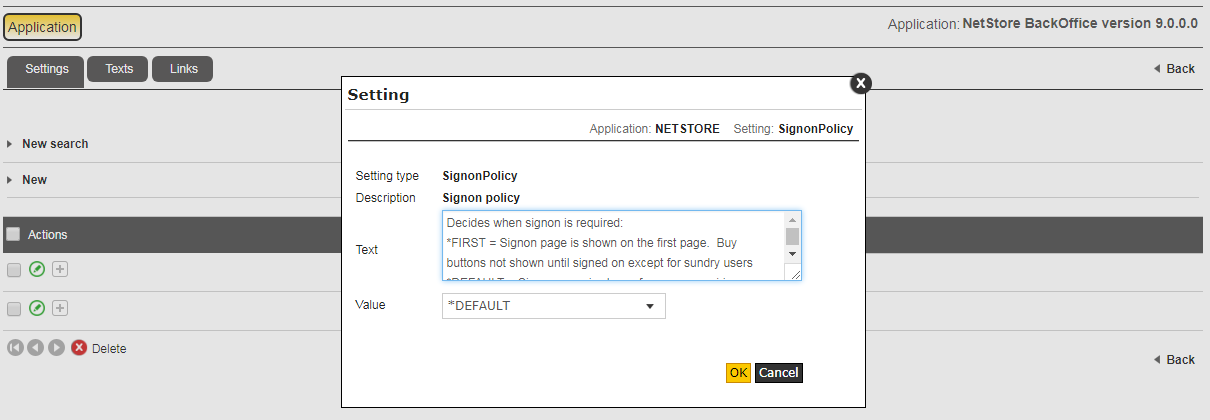
Complete the following field:
| Value | Description |
|---|---|
| *FIRST | The sundry user will be prompted for sign-on directly when accessing NetStore. |
| *DEFAULT | The sundry user will be prompted for sign-on when closing the order. |
| *LATE | The sundry user will be prompted for sign-on when closing the order. |
| *NO_AUTO_SIGNON | The sundry user will never be prompted for sign-on. |
Click OK.
Related topics
- About setting up and managing your site
- Configure on application level
- Configure/modify settings
- Configure and connect data restrictions
- Create and connect texts
- Configure pages
- Define and connect links
- Configure and connect multimedia
- Create and connect descriptions
- Configure shipment tracking
- Translation
- About working with customers